Welcome to Thursday Doors, a weekly feature allowing door lovers to come together to admire and share their favorite door photos from around the world. Feel free to join in on the fun by creating your own Thursday Doors post each week and then sharing your link in the comments below, anytime between 12:01 am Thursday morning and Saturday noon (North American eastern time). You can join in Thursday Doors here: https://nofacilities.com/2022/12/01/barns-and-news/
Last week I went to Olives and Plates Wits Cub and Conference Centre to celebrate the promotions of a few colleagues. Wits (University of the Witwatersrand) is the university my son attends and is also where my husband studied.
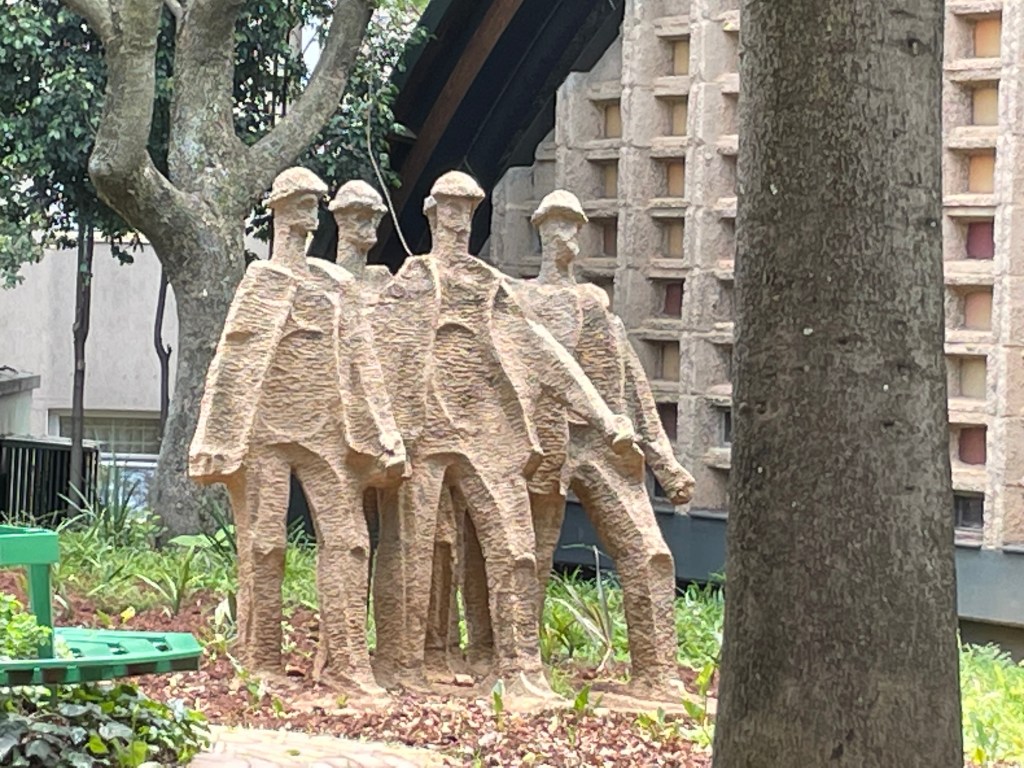
The restaurant and campus are beautiful and these are a few pictures.
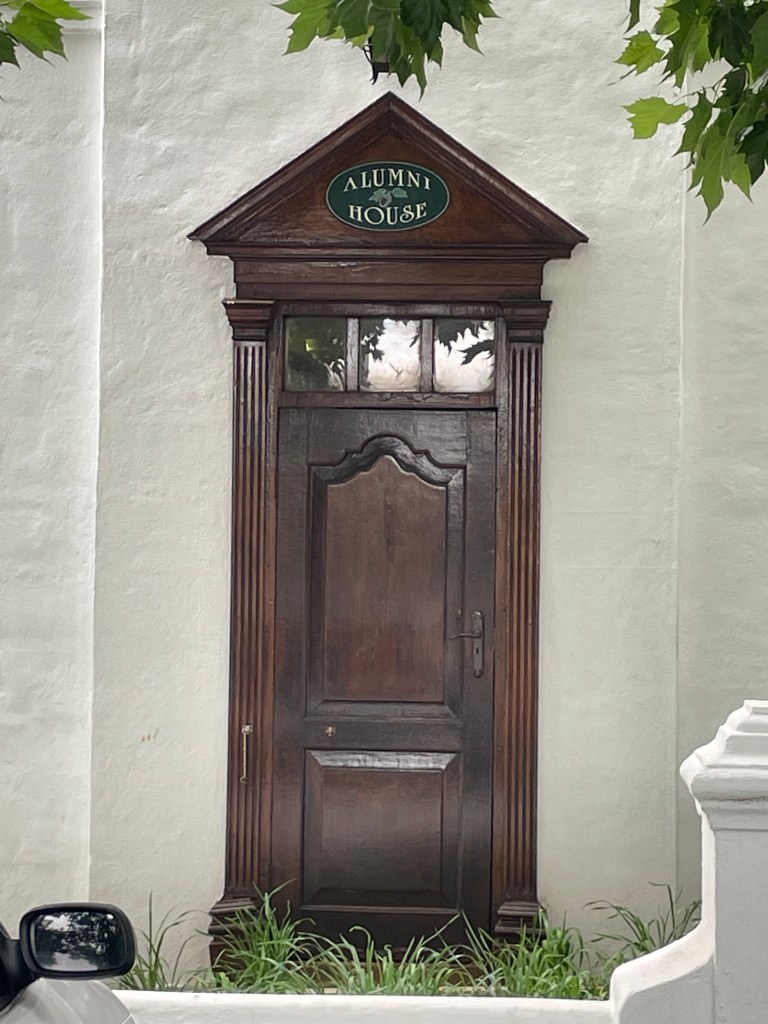
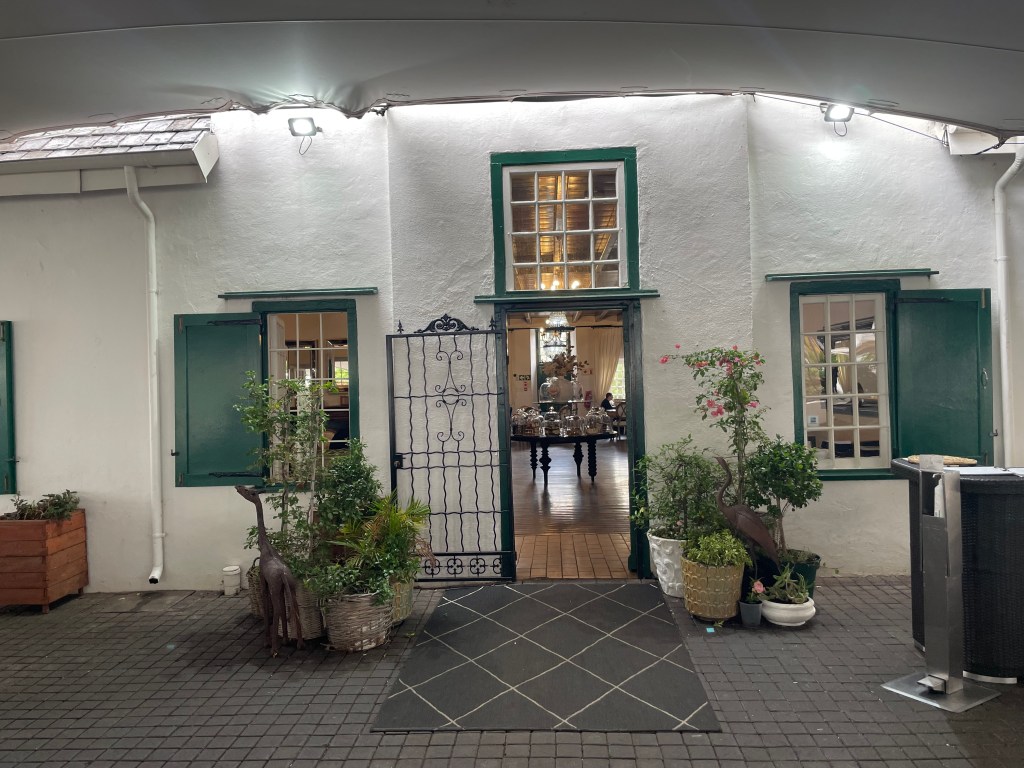
Back of the Wits ClubClose up of the door – not in useSide door to the Wits ClubEntrance to Olives and Plates
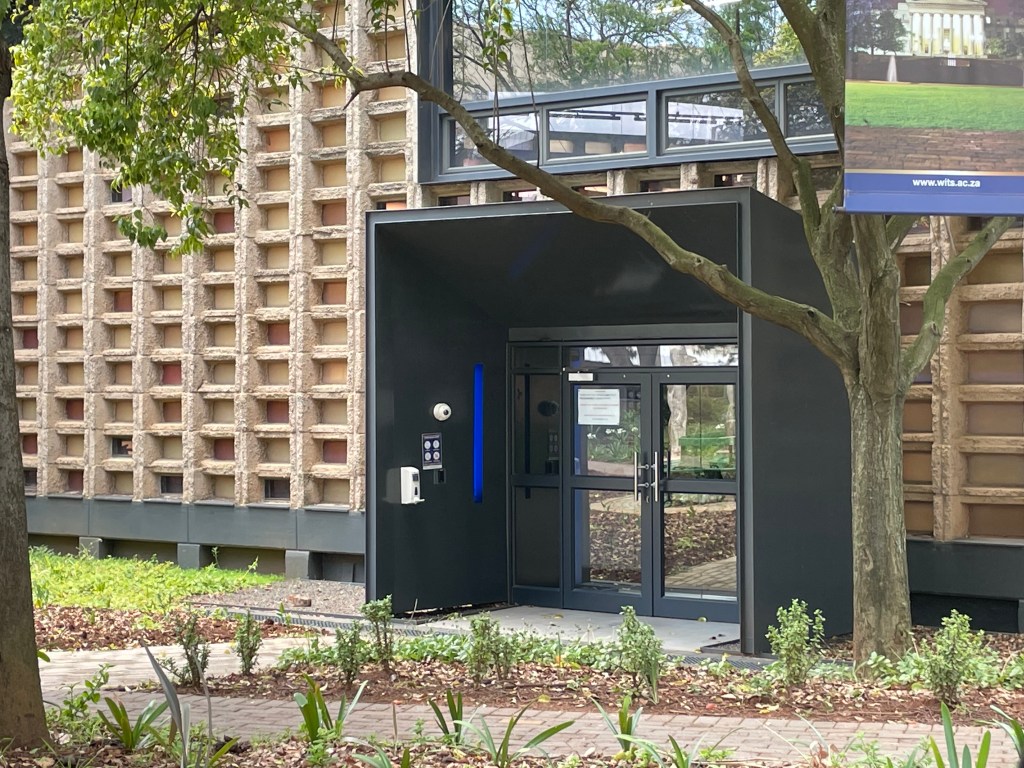
I don’t know what this building is but it had a curious wall design
Dave Astor has a great post this week about books that feature poverty or abuse of others called This Gap Is Not a Clothing Chain. You can read it here: https://daveastoronliterature.com/2022/11/27/this-gap-is-not-a-clothing-chain/. Dave challenged his readers to mention some books that feature this theme and these are mine.
I have been a little tricky with my post though, because all the quotes come from a specific scene or set of related scenes in each of the books below as poverty and abuse are not necessary the primary theme of the novel. Can you guess which books the quotes are from?
Book 1 – English writer – gothic, Bildungsroman, romance novel
“The punishment seemed to me in a high degree ignominious, especially for so great a girl—she looked thirteen or upward…to my surprise, she neither wept nor blushed. Composed, though grave, she stood, the central mark of all eyes…her sight seems turned in, gone down into her heart. She is looking at what she can remember, I believe; not at what is really present. I wonder what sort of girl she is—whether good or naughty.”
“Life appears to me too short to be spent in nursing animosity or registering wrongs. We are, and must be, one and all, burdened by faults in this world; but the time will soon come when, I trust, we shall put them off in putting off our corruptible bodies…I hold another creed, which no one ever taught me, and which I seldom mention, but in which I delight, and to which I cling; for it extends hope to all; it makes Eternity a rest—a mighty home, not a terror and an abyss.”
“What my sensations were, no language can describe; but just as they all rose, stifling my breath and constricting my throat, a girl came up and passed me; in passing, she lifted her eyes. What a strange light inspired them!…It was as if a martyr, a hero, had passed a slave or victim, and imparted strength in the transit. I mastered the rising hysteria, lifted up my head, and took a firm stand on the stool.”
Book 2: English writer – dystopian social science fiction novel
“But simultaneously, true to the Principles of doublethink, the Party taught that the proles were natural inferiors who must be kept in subjection, like animals, by the application of a few simple rules.”
“There was a vast amount of criminality in London, a whole world-within-a-world of thieves, bandits, prostitutes, drug-peddlers, and racketeers of every description; but since it all happened among the proles themselves, it was of no importance.”
” ‘The proles are not human beings,’ he said carelessly.”
Book 3: English writer – dystopian novel
“She liked even less what awaited her at the entrance to the pueblo, where their guide had left them while he went inside for instructions. The dirt, to start with, the piles of rubbish, the dust, the dogs, the flies. Her face wrinkled up into a grimace of disgust. She held her handkerchief to her nose.
“But how can they live like this?” she broke out in a voice of indignant incredulity. (It wasn’t possible.)”
“In the Beta-Minus geography room John learnt that “a savage reservation is a place which, owing to unfavorable climatic or geological conditions, or poverty of natural resources, has not been worth the expense of civilizing.””
“. . . upwards of five thousand kilometres of fencing at sixty thousand volts.”. . .
“”To touch the fence is instant death,” pronounced the Warden solemnly. “There is no escape from a Savage Reservation.”. . .
“Those, I repeat, who are born in the Reservation are destined to die there.”. . .
Leaning forward, the Warden tapped the table with his forefinger. “You ask me how many people live in the Reservation. And I reply”—triumphantly—“I reply that we do not know. We can only guess.””
Book 4: Australian author – family saga
“It’s not worth getting upset about, Mrs. Dominic. Down in the city they don’t know how the other half lives, and they can afford the luxury of doting on their animals as if they were children. Out here it’s different. You’ll never see man, woman or child in need of help go ignored out here, yet in the city those same people who dote on their pets will completely ignore a cry of help from a human being. ”
“We’re working-class people, which means we don’t get rich or have maids. Be content with what you are and what you have.”
“We all have contempt for whatever there’s too many of. Out here it’s sheep, but in the city it’s people.”
I am a great lover of birds and have recently published a fictionalised account of a bird I raised as a girl called The Christmas Bird. It is a micro read of 5 600 words and is aimed at children.
Revisiting my memories of raising a Hoopoe bird, triggered memories of a small part of a peacock romance I witnessed while visiting the Drakensburg in September 2020. That was our first trip away anywhere that year of lockdowns and Covid. I wrote that memory into this 99 syllable poem.
Peacock romance
Dowdy and plain in brown,
she stands and watches,
her prospective mate as he crosses the lawn,
blissfully unaware,
of her thoughtful stare.
He cuts a fine figure,
resplendent in blue,
this despite his splendid tail dragging behind
Glancing up, he spots her,
it’s love at first sight
In a show of interest,
she descends the stairs,
Passion ignited, his tail spreads out fanlike,
Overwhelmed, he takes off,
with her in pursuit.
Image by Teagan
My good blogging friend, Teagan Riordain Geneviene, is also a bird lover. She recently hosted a book fair that featured books that had birds as characters or supporting characters. You can visit Teagan’s lovely post here: https://teagansbooks.com/2022/11/23/birds-of-a-feather-book-fair/
Welcome to Thursday Doors, a weekly feature allowing door lovers to come together to admire and share their favorite door photos from around the world. Feel free to join in on the fun by creating your own Thursday Doors post each week and then sharing your link in the comments below, anytime between 12:01 am Thursday morning and Saturday noon (North American eastern time). You can join in here: https://nofacilities.com/2022/11/24/come-ye-thankful-people/
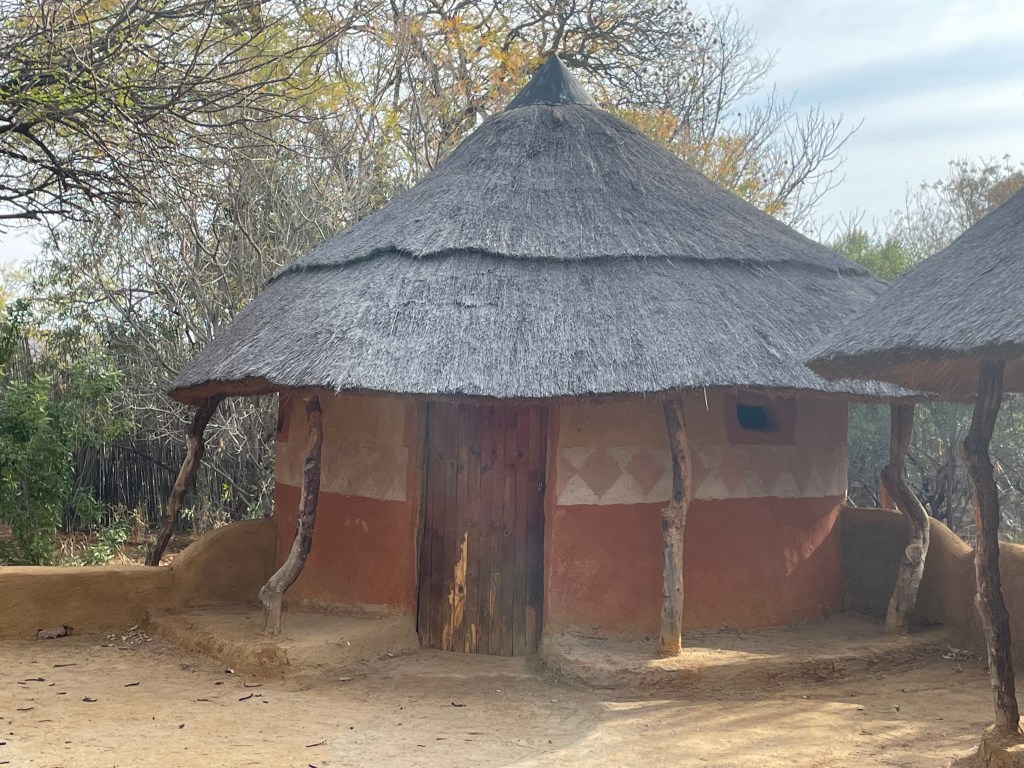
During our recent trip to Groot Marico, we visited the Herman Charles Bosman Living Museum. There are a number of interesting things to see at this museum, but this post focuses on the replica Batswana huts and the granary (sefalana).
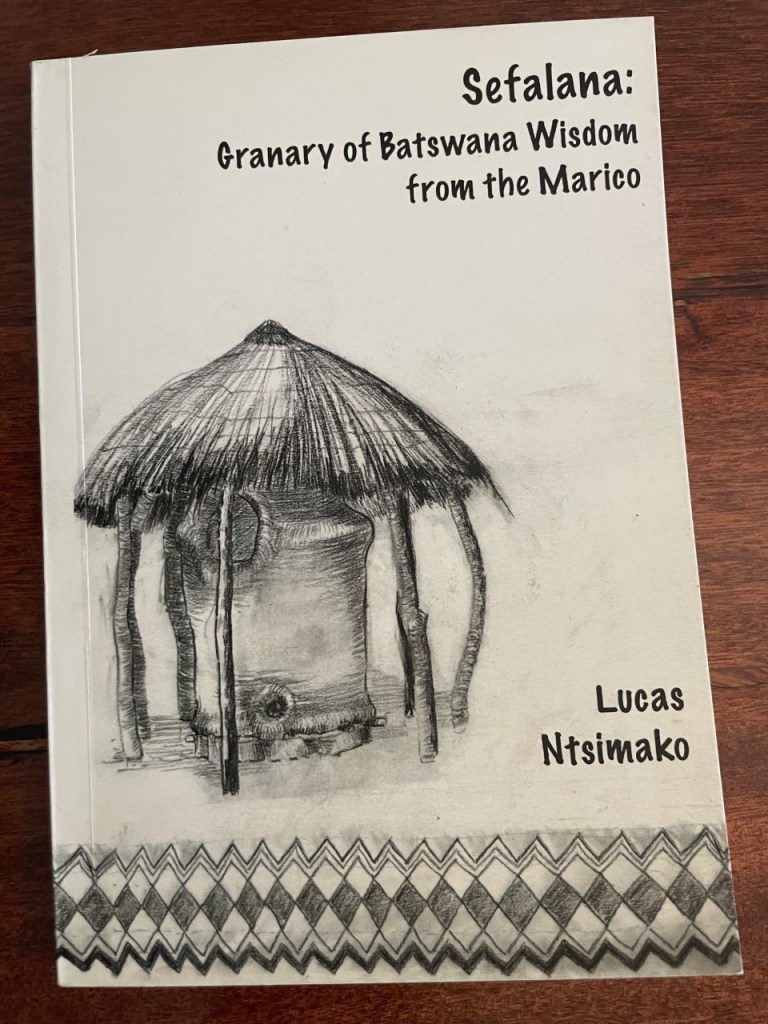
I managed to purchase a delightful book about the Batswana culture in the region called Sefalana: Granary of Batswana Wisdom from Marico by Lucas Ntismako.
This book provides some interesting information about the importance of the sefalana in a homestead. The blurb runs as follows:
“In the lives of Batswana families the sefalana, a specially built clay granary in a homestead, used to be the mainspring of their survival. It represented an entire season’s toil: preparing the soil, planting, weeding, chasing away flocks of birds and eventually harvesting, threshing and grinding. A bad season could mean disaster and it is not without reason that a Setswana proverb warns that ‘famine hides under the granary’. The sefalana is therefore something to be cherished and respected.”
This is a painting I have that shows women working in the fields (these people are Matabele, now Northern Ndebele, not Batswana but the concept is the same):
These are my pictures of the two traditional Batswana huts on display at the museum:
These are my pictures of the sefalana (granary):
This is my YT video of a short reading from Sefalana: Granary of Batswana Wisdom from the Marico which discusses the importance of the granary.
Michael
Michael is doing much better this week. On Tuesday he had the last four stents removed which made him feel a lot better. The doctor was relatively happy with his healing. The left looks great and the right hand side was open although the drainage is narrow and the mucus membranes were swollen and angry on Tuesday. We are now back to steaming, douching, and cortisone three times a day. Michael is also on another antibiotic for a month (the third in 2 months).
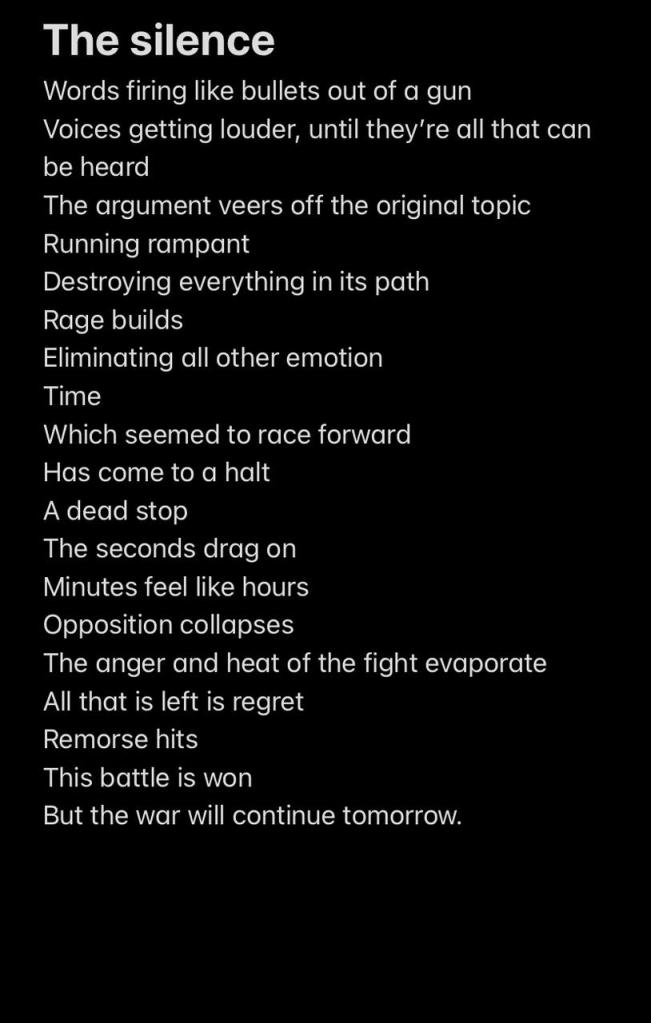
Michael wrote a lovely poem. It is a bit dark but that is his writing style:
My November Dark Origins post features the Khoikhoi (previously Hottentots) who, together with the San (previously Bushmen) are the first people of South Africa. I have also shared a traditional Khoikhoi myth called The Night Walkers. Thanks for hosting Kaye Lynne Booth.
At the time when European settlement began, the Khoikhoi were settled in modern day Namibia, the north-eastern Cape and the south-western Cape. The name Khoikhoi means “real people” or “men of men”. The Khoikhoi are closely related to the San (Bushmen) and are sometimes referred to together as Khoisan. There is a theory that the Khoikho and the San were once the same race. The Khoikhoi broke away to raise cattle, build huts and lead a pastoral life while the San remained true to the wilderness and the elements.
The Khoikhoi were nomadic, moving around in search of grazing land for their animals which consisted mainly of goats, cattle and sheep. They also manufactured animal skins into clothing, bags and blankets and used reeds to make sleeping mats and mats to cover their round and mobile homes. The Khoikhoi also made pottery which could be tied to their oxen…
Kalb Ward slaughters dogs for the Colony, a closed, dystopian society where resources are tight, free speech is nonexistent, and those in power have eyes and ears everywhere. Ward desperately wants to quit his grisly job, but he knows he’ll be arrested, or worse, if he tries.
In the Colony, a citizen’s future is determined by a placement exam. Score high, and you’re set for life. Score low, and you end up living a nightmare–like Ward.
Li Ling, the love of Ward’s youth, scored high, and she’s a local celebrity now, far out of his reach. Meanwhile, his neighbor’s son is making a series of disastrous decisions as his own exam rapidly approaches.
Can Ward bridge the social divide and win back Li Ling? Can he help the neighbor’s son avoid a future as grim as his own? Can he escape the Colony’s oppressive rule and, if he’s very lucky, bring down the whole horrific system in the process?
You know what they say: Every dog has his day.
And Ward’s day is coming.
My review
This book is not for the faint of heart. It delves deeply into the cruelty of the dog meat industry and some of the descriptions are very disturbing. If you have a strong stomach, this books is worth the read.
Kalb Ward lives in a post-revolutionary dystopian society where all citizens are assessed through an examination at the age of 11 and assigned their future path in society. Ward was ill when he took the test and didn’t perform well, as a result his assigned path was that of a manual labourer. Despite the best efforts of his parents, they are not able to change this outcome and Ward has gone on to become a dog slaughterer for a restaurant. His job is very distasteful and distressing to him and the only way he can get through the killing of the dogs, which must involve extreme torture in order to season the meat, is by dissociating from his body. His ability to dissociate give the reader the first indication of Ward’s strength of mind and determination. Ward is desperate to find a way out of his awful life, even if it means going to jail which is called re-education by the ruling party.
Ward was an interesting character who reminded me a bit of Winston in 1984. In fact, the dystopian world inhabited by Ward also has a slightly ‘1984’ feel in that it has a version of a Big Brother ensuring that all citizens toe the party line and no infractions or transgressions of the societal laws are tolerated.
As the story unfurls, the reader learns that Ward’s father was an intelligent and successful man who was murdered by revolutionaries and his mother is also a woman of superior intellect. The frustration felt by Ward in his job that is not only dead-end, but also very cruel, is understandable given his obvious inherited intellect, and kind heart. His rising up against the restrictions imposed on him is not at all surprising, but there are a few interesting aspects to Ward’s character that are exposed through revelations of his past and present behaviours over the course of this intense novella.
I am always fascinated by the attitude, determination, and fortitude that people can exhibit in the most adverse of circumstances. The author has tapped into the intriguing aspect of human behaviour with the creation of Ward.
Something evil is after the hat. The ageless enemies have battled many times, but this time Lizzie is wearing the hat. She’s also up against a ticking clock, in that if she can’t find the maker of her new friend’s medicine he will die.
The Rambler has kidnapped the only witch capable of making Ray’s medicine in an attempt to make the hat sloppy in his efforts. He’s also flooded the streets with deadly minions to impede any progress our heroes might make.
As if that weren’t enough, Lizzie is facing more of life’s struggles, both financially and mechanically. This all goes down in the middle of a huge flood event that she’s ill equipped to handle.
Join Lizzie and the hat as they battle the elements, the paranormal, and a being of pure evil. Lizzie might be battling some personal demons along the way as she and Ray grow closer.
My review
Who would suspect that Lizzie’s trendy variety of hats are actually her accomplice as she travels about fighting monsters and putting wrong things right. Not only is The Hat able to transform into interesting and fashionable hats, but he is also an accomplished hero whose role as the right-hand ‘man’ to Lizzie’s ancestors goes back decades, and an excellent musician. In between monster fighting escapades, Lizzie and The Hat play in a band.
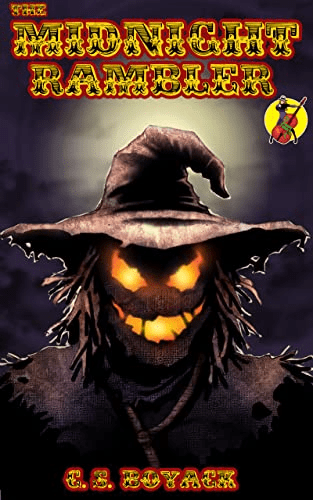
In this novella, an evil scarecrow, The Midnight Rambler, with the ability to animate vegetables and turn them into biting attackers, returns to life full of determination to find and destroy his age-old nemesis, The Hat. The Midnight Rambler is well aware of the connection between Lizzie’s family and The Hat and kidnaps a friend of Lizzie’s, the Professor, to bring the pair to him.
Unfortunately, the Professor is the only person who can make the medicine that keeps Ray, his Frankenstein-constructed human son, alive. Lizzie meets up with Ray and quickly becomes bedazzled by his kind heart and unusual good looks. A romance develops between the two and Lizzie will do anything to find the Professor and save Ray. This results in Lizzie and The Hat taking bigger chances than usual to draw The Midnight Rambler out into the open. The trio use a variety of strategies, including listening to the Night Bump Radio and trying to get people to call in sightings of pumpkin-headed zombies, to track down their enemy and find the professor.
This is a light hearted and fun filled thriller with a lot of humour and snarkiness thrown in. Ray is a delightful character and Lizzie and The Hat are their usual highly entertaining selves. A great edition to this imaginative series.
Welcome to Thursday Doors, a weekly feature allowing door lovers to come together to admire and share their favorite door photos from around the world. Feel free to join in on the fun by creating your own Thursday Doors post each week and then sharing your link in the comments below, anytime between 12:01 am Thursday morning and Saturday noon (North American eastern time).
This has been another surreal week. On Tuesday, exactly four weeks after the previous repeat surgery on Michael’s sinuses, he underwent another procedure. The surgery last year failed because he is getting significant post operative cartilage overgrowth and scar tissue build ups. This has the effect of completely blocking the artificial drainage openings that the surgery created. This results in complete surgical failure over time.
Last year, when Michael had surgery, he was given very high doses of cortisone to try to break the autoimmune overgrowth response. He was also on an antibiotic for three months until January this year. This treatment worked until July when he had the first sinus infection in six months. He had sinus infections in August and late September. The antibiotic treatment for the most recent infection failed dismally and that is why we had to go the surgery route. Cortisone is no longer an option for Michael as the last lot caused high blood pressure issues.
Within four days of the operation, the doctor was already seeing scar tissue formation on the right hand side. We went onto an aggressive home treatment programme of steaming over boiling water and then douching with a saline solution before using cortisone nasules in both nostrils and an antibacterial nasal cream. Michael also had a second course of strong antibiotics. We did this for two weeks, but on Sunday, 6 November, the doctor admitted defeat. The right hand drainage had closed up completely and there was nothing he could do about it outside of surgery. Further surgery was booked for this week Tuesday and the plan was to reopen the drainage, clear out the infection that has formed behind the barrier, and then insert a stent to keep it open which it healed. The procedures should have taken about 1 hour.
The operation took 3-hours which was rather disconcerting because we didn’t know why it was taking so long until afterwards. during the week and two days from Sunday, 6 November, the left hand drainage had also started to close up with scar tissue and there was some infection in the left sinus as well. The doctor reopened both sides, removed all the scar tissue and infection, and inserted 6 stents, 3 on each side. Two were sponges soaked in cortisone and covered in plastic which were inserted into the sinus cavity to reduce inflammation and hold the area open. These ones came out today. It was a bit shocking watching them being pulled out. A bit like a Stephen King horror movie watching these egg-shaped wads coming out of his nose. Like giving birth to a small reptile eggs – shudder! I read to much paranormal!
The other 4 stents stay in until Tuesday next week and then the homecare programme starts again. Whew! Anyhow, the doctor was pleased with how everything looked today so that is a big plus.
These are a few of the doors from the hospital ward:
Door to the medicine supplies cabinet next to Michael’s bedDoor to the bathroom – at least it had a seat this time. He was in the orthopedic ward last time and the seats are removed for the hip replacement patients who have a special seat put on.Door to the ward
This is the view of Sandton from the ward window. It was at sunset and you can see the sunlight reflection off the glass fronted buildings.
A poem – Dragonfly strike
I haven’t been able to write any poetry since Michael first got sick again six weeks ago. Today, I managed to break through the barricade. Okay, its about a dragonfly eating a butterfly but still, progress is progress [smile].
Blissfully unaware
the butterfly lands
pale wings fluttering, she sucks from the flower
multifaceted eyes
watch with interest
***
Appetite satisfied
butterfly takes off
a whoosh of transparent wings; it disappears
the oblivious prey
of the dragonfly
***
An aggressive hunter
it resumes the search
for any unwary insect, pest or not
agility and speed
ensuring success
A new children’s book – Micro read
I have been experimenting with formatting my children’s books to improve the digital formats. I am not at all happy with the ebooks from Lulu.com and would prefer to publish any ebooks I create through Kindle Direct Publishing. This micro-read, The Christmas Bird, is my first attempt at this form of publishing. The story is 5,600 words long and is also available for free through Kindle Direct.
I am pleased with how it turned out. If you’d like to take a look and are subscribed to Kindle Direct, you can do so here: https://www.amazon.com/Christmas-Bird-Robbie-Cheadle-ebook/dp/B0BMMB2H75. You can also purchase it for $1.14 which is the cheapest I can get on Amazon. This is an old fashioned Christmas story so no cell phones or fast paced action, but I am fond of it. It is semi autobiographic.
Three months before the invasion of Iraq, a member of a Masonic fraternity known as the Rosicrucians escapes from a British Intelligence holding station.
Orchestrated by the head of the Russian Federal Security Service, this event is somehow linked to a the highly classified CIA file only known as Gladio B. Tasked to destroy an unholy alliance between corrupt business and corrupt politics, the chairman of the British Joint Intelligence Committee plans to bring the criminals to justice.
But he is running low on both time and allies, as mass annihilation threatens the whole planet. Who are the mysterious eight families that seem to be behind the mysterious events, and what do they have to do with the ancient 33rd degree level of understanding, only known by the mysterious Rosicrucian brotherhood?
My review
Patrick West has been on convalescence leave following a bomb blast in an Irish pub that left him suffering from Post Traumatic Stress Disorder. A strange summons to the offices of the British Joint Intelligence Committee leads to his appointment as it’s head. His predecessor, Geoffrey, takes him to an isolated farm where he is introduced to Henry Mayler, a political prisoner who is of Armenian-German ancestors and is a member of a secret society called the Rosicrucians. The meeting with Henry, the presence of a Russian double agent in the UK, and unusual happenings in places of British Intelligence special interest soon point towards Patrick’s having become involved in, and being expected to take over, a potential disaster on a world wide basis which has already been put in motion.
Patrick is out of his depth and he knows it but he takes control of the circumstances by obtaining the help and advice of a retired mentor, Fraser Urquhart, with a historical connection to Henry Maylor through his previous position in British Intelligence, and his well-informed executive assistant. Patrick sets out to unravel the dangerous political game he has become embroiled in and bring the criminal master-minds to justice. Aside for the usual dangers and problems, the criminals Patrick is after are eight of the most powerful and richest people on Earth.
I enjoyed the character of Patrick very much. He is genuine and dedicated to discovering the truth and protecting the UK’s political interests. I liked that he was patriotic and determined. He also has a lot of guts and is not intimidated by people in more senior positions than his own. Patrick is challenged by the memories from past assignments where colleagues and love interests have been killed, but he starts learning to control his condition as the story progresses. His development as a leader is admirable and interesting.
Fraser Urquhart was my favourite character. A retired senior member of British Intelligence, he is Patrick’s mentor and voice of reason in the unfolding chaos. Fraser knows a lot about Rosicrucians, the Russian double agent, Henry Maylor, and the group of eight, but he doesn’t quite know enough to put the intricate puzzle together. Frazer is a strange mix of Scottish gentleman, conniving conman, womaniser, and patriot to the UK. He has many failings, but is forthrightness, determination and adaptability make him a fascinating character.
There is a mild romance twisting through the story as a sub-plot. I enjoyed that and appreciated the slight softening of Patrick’s usury attitude towards females as the romance unfolded. It made him more relatable and put the reader firmly in his court.
This book will enthrall lovers of spy novels and thrillers.
Daniel Kemp’s introduction to the world of espionage and mystery happened at an early age when his father was employed by the War Office in Whitehall, London, at the end of WWII. However, it wasn’t until after his father died that he showed any interest in anything other than himself!
On leaving academia he took on many roles in his working life: a London police officer, mini-cab business owner, pub tenant and licensed London taxi driver, but never did he plan to become a writer. Nevertheless, after a road traffic accident left him suffering from PTSD and effectively—out of paid work for four years, he wrote and self-published his first novel —The Desolate Garden. Within three months of publication, that book was under a paid option to become a $30 million film. The option lasted for five years until distribution became an insurmountable problem for the production company.
All seven of his novels are now published by Creativia with the seventh—The Widow’s Son, completing a three book series alongside: What Happened In Vienna, Jack? and Once I Was A Soldier. Under the Creativia publishing banner, The Desolate Garden went on to become a bestselling novel in World and Russian Literature in 2017. The following year, in May 2018, his book What Happened In Vienna, Jack? was a number one bestseller on four separate Amazon sites: America, UK, Canada, and Australia.
Although it’s true to say that he mainly concentrates on what he knows most about; murders laced by the mystery involving spies, his diverse experience of life shows in the short stories he writes, namely: Why? A Complicated Love, and the intriguing story titled The Story That Had No Beginning.
He is the recipient of rave reviews from a prestigious Manhattan publication and described as—the new Graham Green—by a highly placed employee of Waterstones Books, for whom he did a countrywide tour of book signing events. He has also appeared on ‘live’ television in the UK publicising that first novel of his.
He continues to write novels, poetry and the occasional quote; this one is taken from the beginning of Once I Was A Soldier
There is no morality to be found in evil. But to recognise that which is truly evil one must forget the rules of morality.
Welcome to Thursday Doors, a weekly feature allowing door lovers to come together to admire and share their favorite door photos from around the world. Feel free to join in on the fun by creating your own Thursday Doors post each week and then sharing your link in the comments below, anytime between 12:01 am Thursday morning and Saturday noon (North American eastern time). You can join in here: https://nofacilities.com/2022/11/10/more-from-granby/
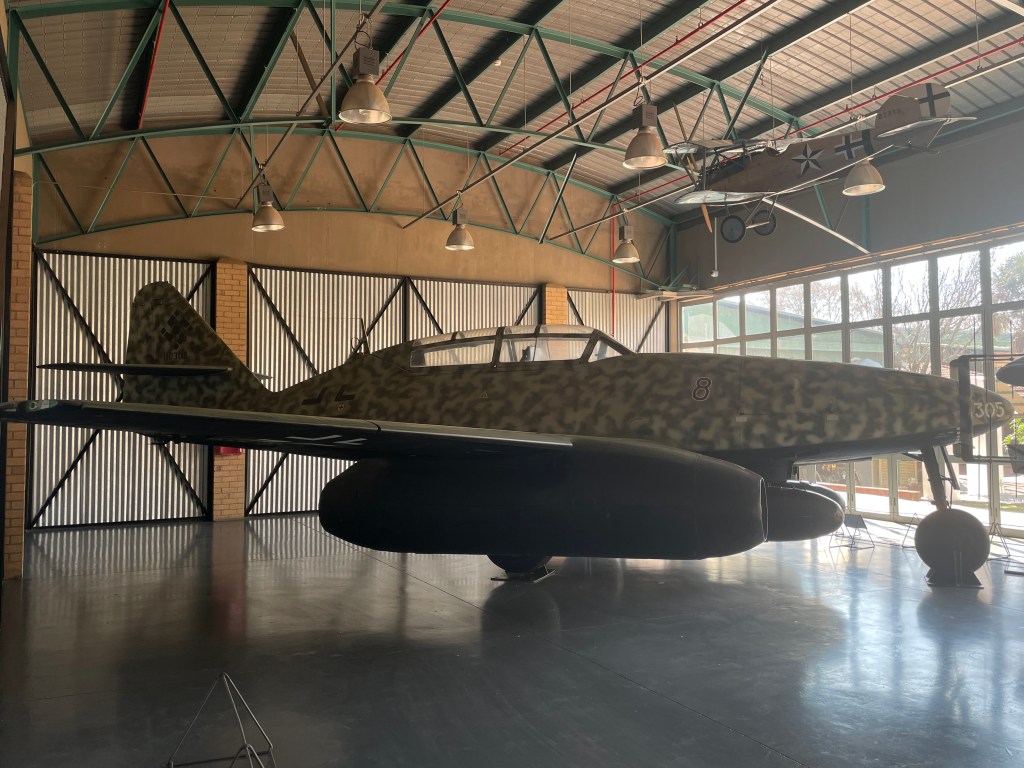
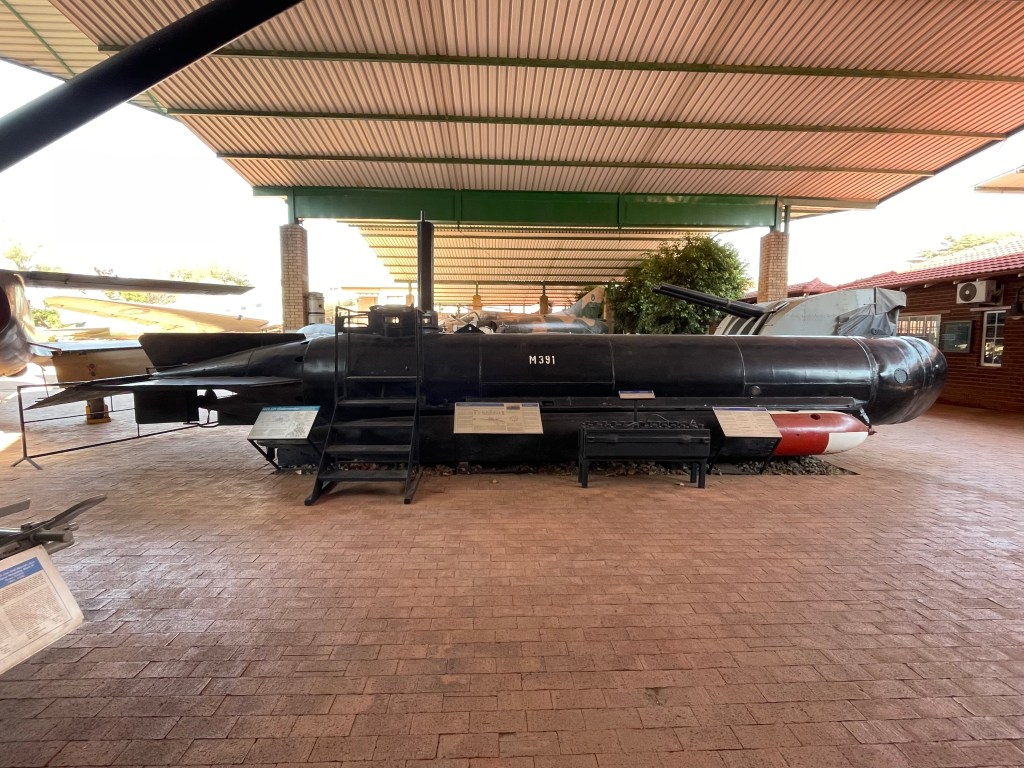
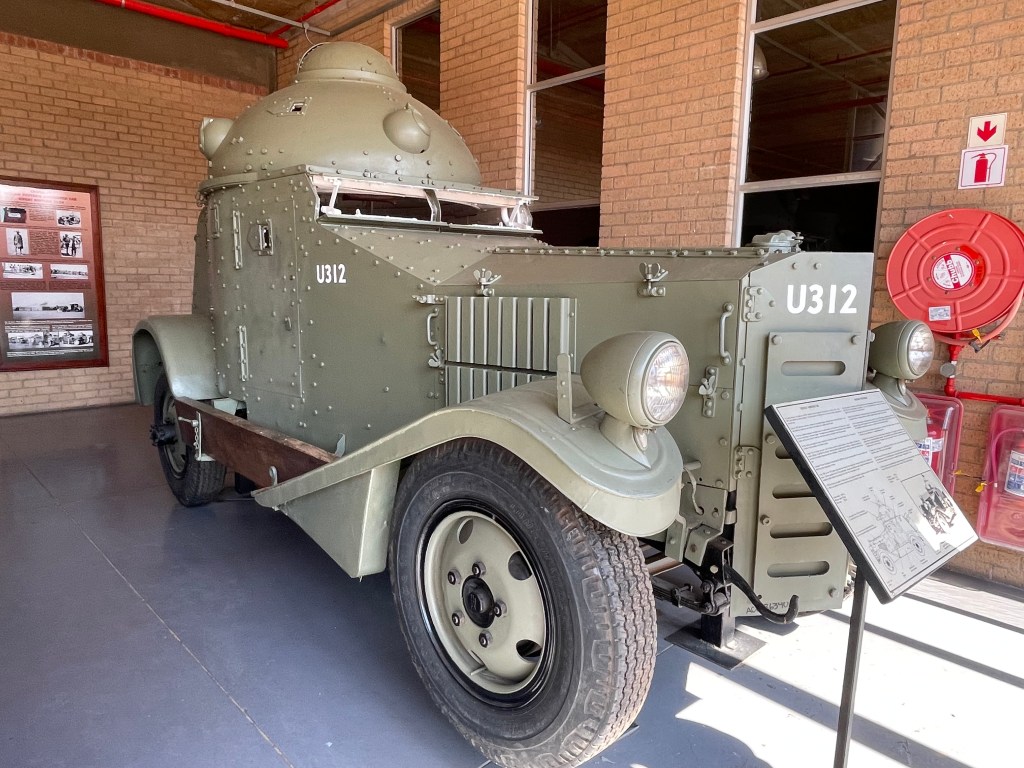
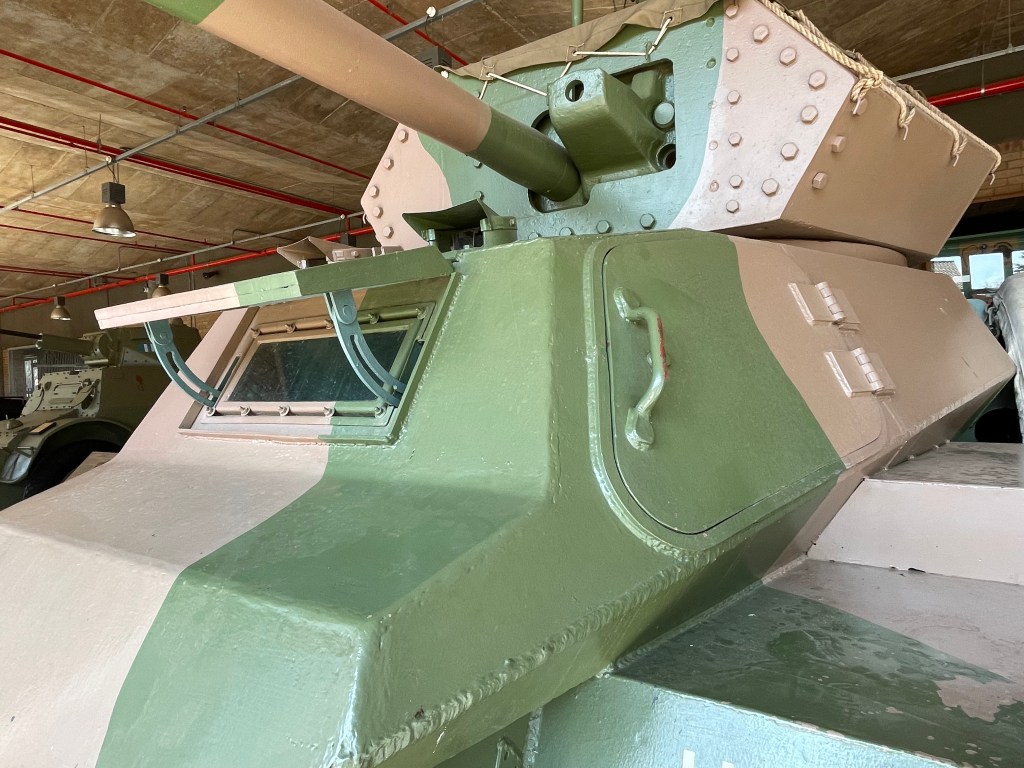
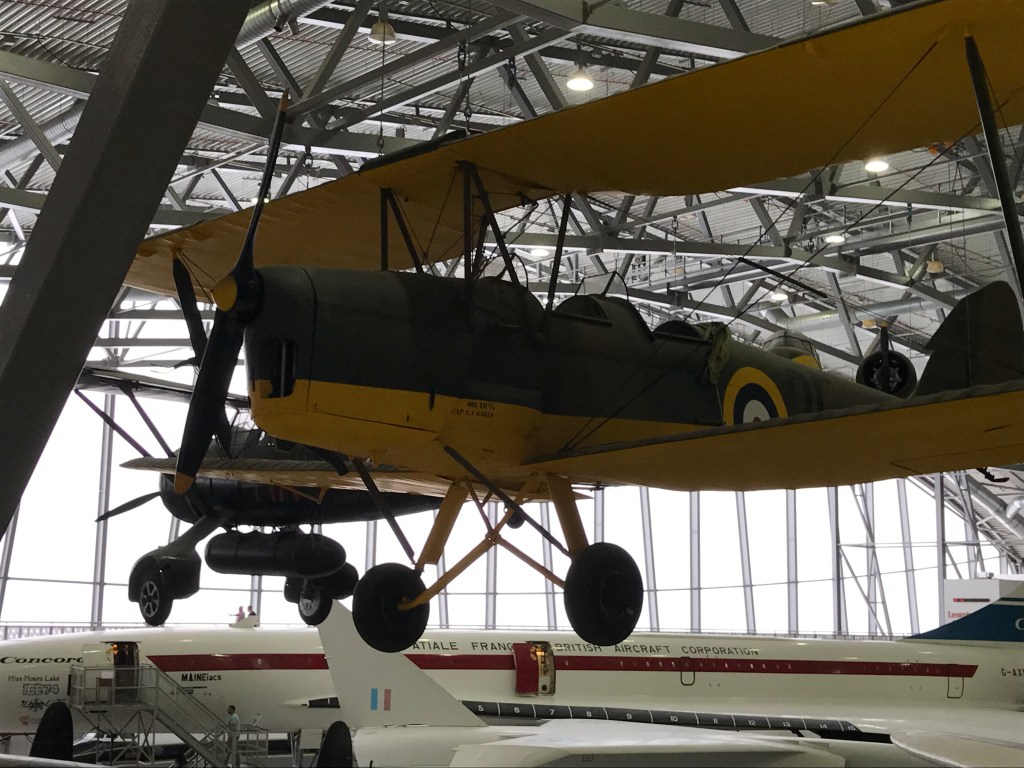
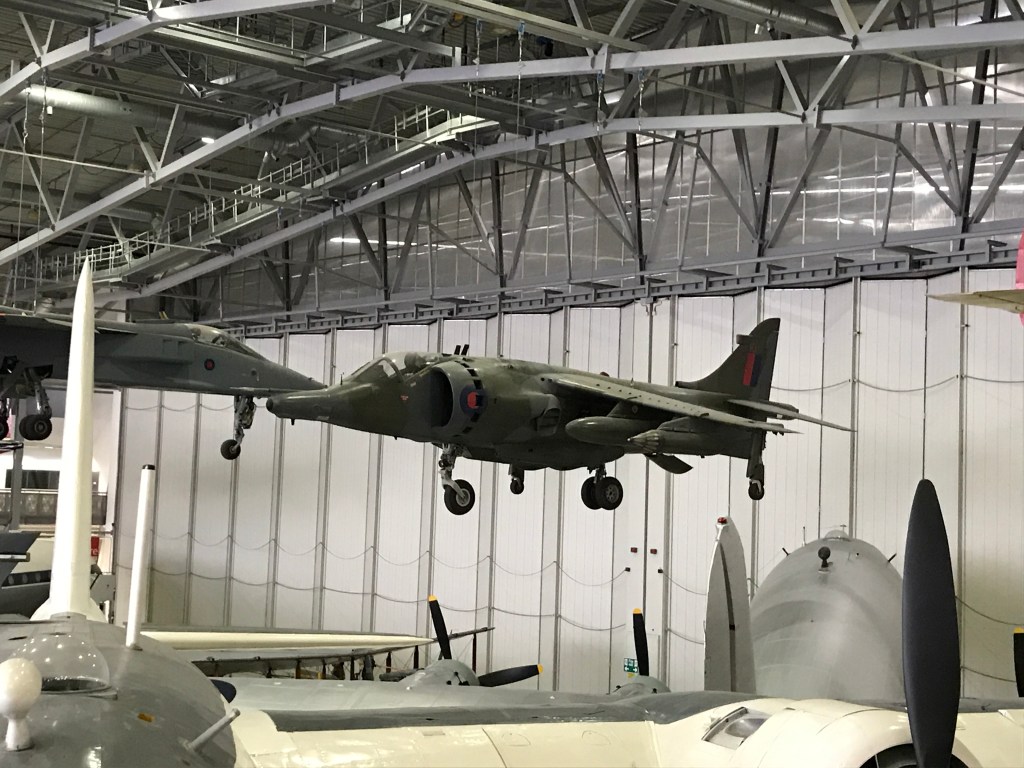
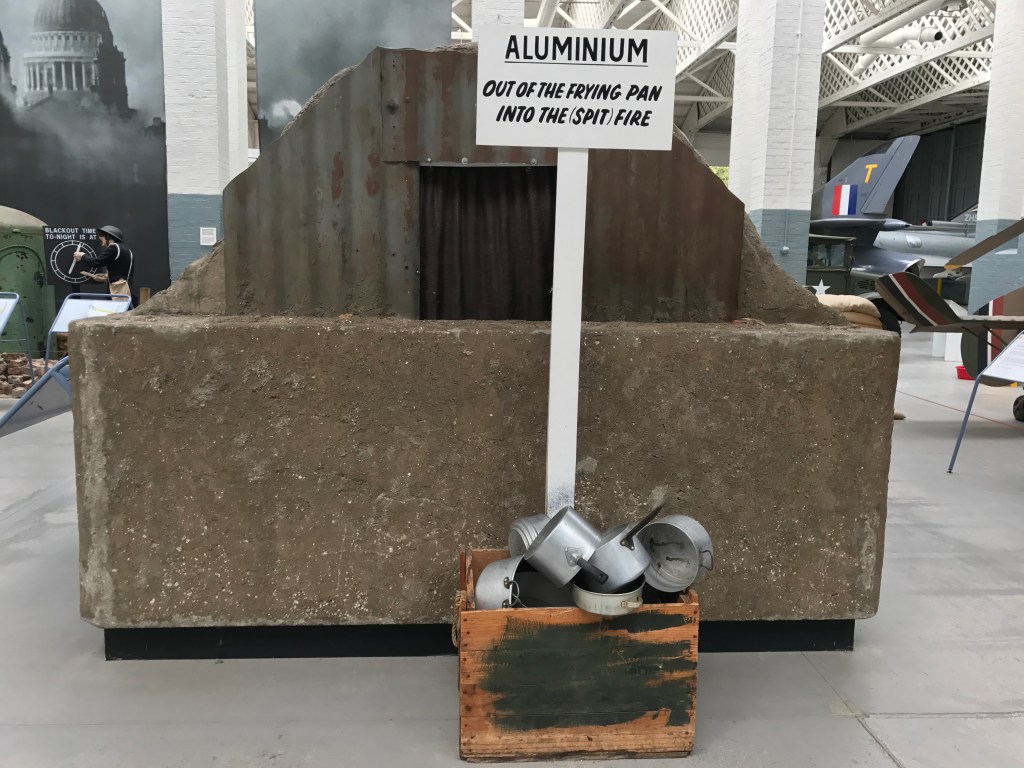
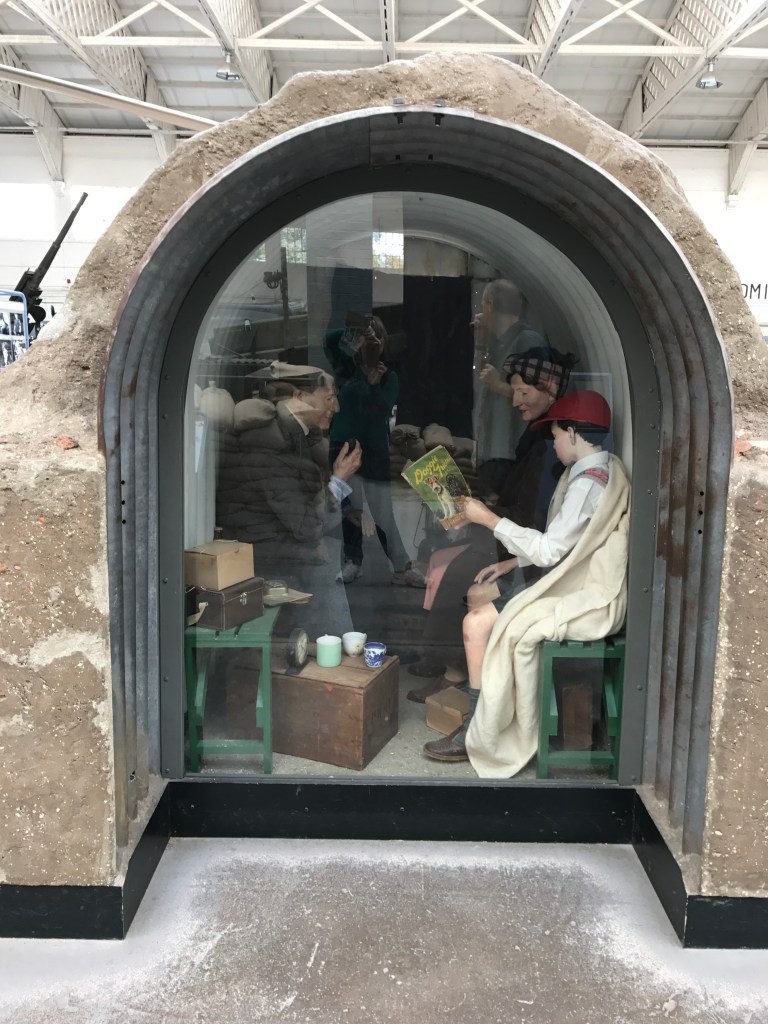
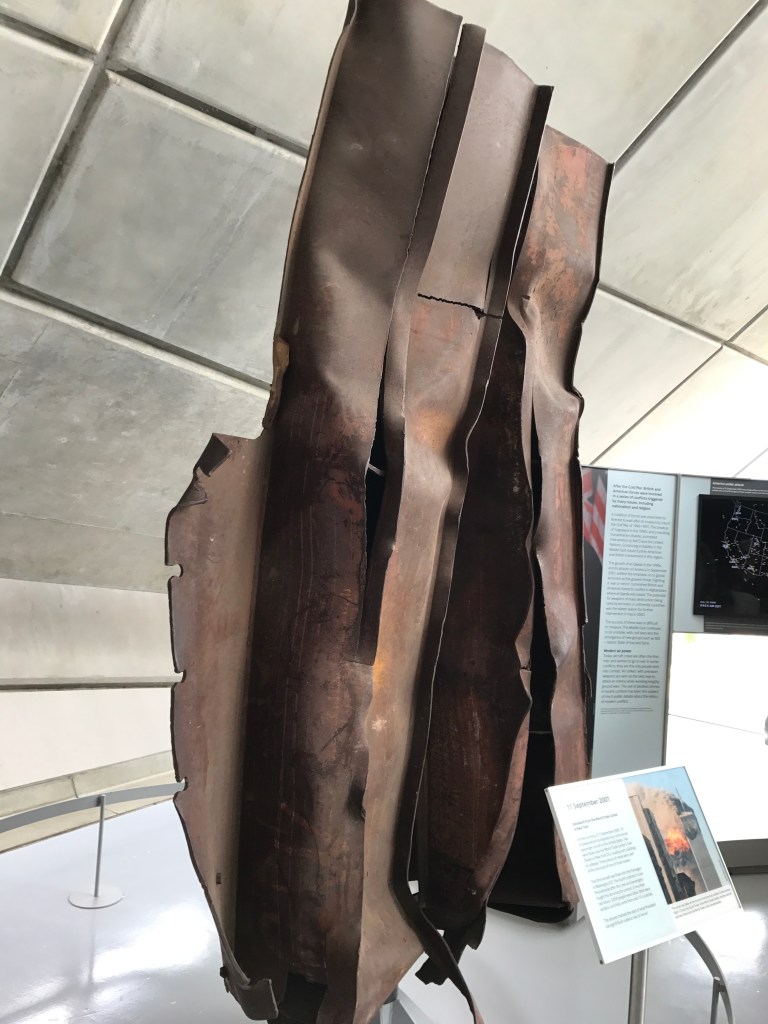
Today is Remembrance Day and so I’ve decided to share a few of the pictures from my visit to the South African War Museum and the Duxford Imperial War Museum in Cambridgeshire, UK.
South African War Museum
All these war machines have doors. You can see the door nicely in the last picture of a tank.
Duxford Imperial War Museum
Storage place for aluminum for the war effortPeople in a bomb shelter during WW2A piece of steelwork from the World Trade Centre in New York 11 September 2001
Recording of my short story, The Warning
The Warning features in Wings & Fire anthology edited by Dan Alatorre and is about the eruption of Mount Tarawera in 1886 which destroyed the famous Pink and White Terraces in New Zealand.
A few of my blogging friends have expressed interest in this short story so I made this recording which also includes some of my own photographs from our trip to this area in 2016 and some paintings of the Pink and White Terraces and the eruption by Charles Blomfield.
I apologies for my pronunciation of the local names. I tried to pick up the pronunciation but promptly forgot when I had to say the word.
Friday is Remembrance Day 2022. In anticipation, I thought I would share quotes from four famous war novels for this week’s literary quiz.
Do you know the author or the title of these four novels, or both? I’ve given a few clues this week.
Book 1 – American author – American civil war
“It was not well to drive men into final corners; at those moments they could all develop teeth and claws.”
“Since he had turned his back upon the fight his fears had been wondrously magnified. Death about to thrust him between the shoulder blades was far more dreadful than death about to smite him between the eyes. When he thought of it later, he conceived the impression that it is better to view the appalling than to be merely within hearing.”
“Thoughts of his comrades came to him. The brittle blue line had withstood the blows and won. He grew bitter over it. It seemed that the blind ignorance and stupidity of those little pieces had betrayed him. He had been overturned and crushed by their lack of sense in holding the position, when intelligent deliberation would have convinced them that it was impossible. He, the enlightened man who looks afar in the dark, had fled because of his superior perceptions and knowledge. He felt a great anger against his comrades. He knew it could be proved that they had been fools.”
“The slaves toiling in the temple of this god began to feel rebellion at his harsh tasks.”
Book 2 – German author – WW1
“He lies there for a while without a word. Then he says, ‘You can take my flying boots for Müller.’ I nod and try to think of something to say that will cheer him up. His lips are pallid, his mouth has got bigger and his teeth look very prominent, as if they were made of chalk. His flesh is melting away, his forehead is higher, his cheekbones more pronounced. The skeleton is working its way to the surface. His eyes are sinking already. In a few hours it will all be over.”
“I am young, I am twenty years old; yet I know nothing of life but despair, death, fear, and fatuous superficiality cast over an abyss of sorrow. I see how peoples are set against one another, and in silence, unknowingly, foolishly, obediently, innocently slay one another.”
“We came to realise – first with astonishment, then bitterness, and finally with indifference – that intellect apparently wasn’t the most important thing…not ideas, but the system; not freedom, but drill. We had joined up with enthusiasm and with good will; but they did everything to knock that out of us.”
“We’re no longer young men. We’ve lost any desire to conquer the world. We are refugees. We are fleeing from ourselves. From our lives. We were eighteen years old, and we had just begun to love the world and to love being in it; but we had to shoot at it. The first shell to land went straight for our hearts. We’ve been cut off from real action, from getting on, from progress. We don’t believe in those things any more; we believe in the war.”
Book 3 – American author – WW1
“If people bring so much courage to this world the world has to kill them to break them, so of course it kills them. The world breaks every one and afterward many are strong at the broken places. But those that will not break it kills. It kills the very good and the very gentle and the very brave impartially. If you are none of these you can be sure it will kill you too but there will be no special hurry.”
“God knows I had not wanted to fall in love with her. I had not wanted to fall in love with any one. But God knows I had and I lay on the bed in the room of the hospital in Milan and all sorts of things went through my head but I felt wonderful…”
“It could be worse,’ Passini said respectfully. “There is nothing worse than war.” Defeat is worse.” I do not believe it,” Passini said still respectfully. “What is defeat? You go home.”
“Cowards die a thousand deaths, but the brave only die once.”
Book 4 – British author – WW1 poetry
“Dark clouds are smouldering into red
While down the craters morning burns.
The dying soldier shifts his head
To watch the glory that returns:
He lifts his fingers toward the skies
Where holy brightness breaks in flame;
Radiance reflected in his eyes,
And on his lips a whispered name.”
***
“Raved at the bleeding war, his rampant grief
Moaned, shouted, sobbed, and choked, while he was kneeling
Half-naked on the floor. In my belief
Such men have lost all patriotic feeling.”
***
“Three hours ago he blundered up the trench,
Sliding and poising, groping with his boots;
Sometimes he tripped and lurched against the walls
With hands that pawed the sodden bags of chalk.”
Last but not least – Quotes from a war book about the Anglo Boer War by a South African author [big wink]
“Moving backwards, lugging the heavy body, was immeasurably hard. My overtaxed leg and back muscles trembled, and my sweat slicked hands slipped and slid under the captain’s arms. I expelled a huge sigh of relief when William and I were finally able to lay our burden down at a designated spot near to the stranded armoured train. My legs refused to hold me up any longer and I sank to my knees.”
“The trucks exploded with a tremendous whirr-rump sound. The enormous noise rolled across the barren countryside like thunder. The two balls of flame that had been the trucks, burned with a brightness that Robert couldn’t look at. Dark, oily fumes rose in the air, fanning out into a huge mushroom cloud that hovered above the veld like a malevolent genie in a children’s storybook.”
“Leaping to his feet, Pieter moved in the direction of the noise. There was a bright moon, but also some thick dark clouds which drifted across its face. For a minute, Pieter’s world was completely black and then the cloud passed, and he could see the armoured train, its engine leaning drunkenly to one side where it had left the tracks.”
“Over the past months, fear has eaten into his mind’s core like a malevolent caterpillar. Fear of the future. Fear of the soldiers. Fear of losing his farm. It’s been there, rotting his brain matter, ever since the declaration of war in October the previous year.”












 roberta-writes.com